QR Code Generator – Free Online QR Code Maker
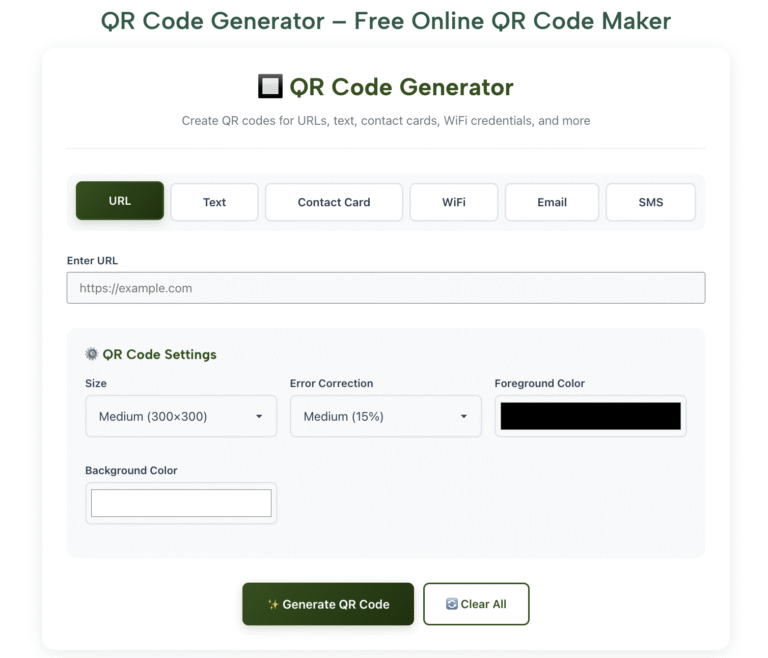
🔲 QR Code Generator
Create QR codes for URLs, text, contact cards, WiFi credentials, and more
⚙️ QR Code Settings
- Test your QR code with multiple devices before printing
- Higher error correction helps if the code gets damaged
- Ensure good contrast between colors for better scanning
- Minimum print size: 2cm × 2cm for reliable scanning
- Leave white space around the QR code when printing
Why Use Our Free QR Code Generator?
Generate QR codes for URLs, plain text, contact cards, Wi-Fi credentials, emails, and SMS — all from one free tool. No account, no watermarks, no limits.
6 QR Code Types
Generate QR codes for URLs, plain text, contact cards (vCard), Wi-Fi credentials, email addresses, and SMS messages. Switch between types instantly without leaving the page.
Fully Customisable
Choose your QR code size (200×200 up to 500×500 pixels), set foreground and background colours, and select your error correction level. Make codes that match your brand colours exactly.
Download as PNG or SVG
Download your QR code as a high-quality PNG for digital use or as a scalable SVG for print materials. SVG files scale to any size without losing quality — ideal for large-format printing.
Instant Generation
Your QR code is generated the moment you click the button — no waiting, no processing delay, no server round-trips. The entire process runs in your browser for maximum speed.
Private & Secure
Your data never leaves your device. Unlike many QR code services that store your links and data on their servers, everything generated here stays entirely within your browser session.
Free Forever, No Watermarks
No hidden fees, no subscription tiers, no watermarks on downloaded codes. Every QR code you generate is completely clean and ready to use commercially, personally, or in print.
What Types of QR Codes Can You Generate?
Our generator supports six of the most commonly used QR code formats. Each type is optimised for its specific use case — here is what each one does and when to use it.
URL / Website Link
The most common type. Encode any website address so users can open it instantly by scanning — no typing required. Perfect for business cards, posters, product packaging, and any print material.
Plain Text
Encode any text message — up to several hundred characters. Useful for displaying instructions, short notes, discount codes, event information, or any message you want users to read after scanning.
Contact Card (vCard)
Encode your full contact details — name, organisation, phone number, email, and website — in vCard format. When scanned, the phone offers to save the contact directly to the address book.
Wi-Fi Credentials
Let guests connect to your Wi-Fi without ever typing a password. Enter your network name (SSID), password, and security type. Scanning the code connects the device automatically on most phones.
Pre-fill an email address, subject line, and message body. When scanned, the phone opens the email app with all fields populated — the user just taps send. Great for contact forms and feedback requests.
SMS Message
Encode a phone number and pre-written SMS message. Scanning opens the messages app with both fields filled in. Useful for customer support, promotions, and SMS opt-in campaigns.
How to Generate a QR Code in 4 Steps
The entire process takes under 60 seconds. No technical knowledge required — just fill in your details and download.
Choose Your QR Code Type
Select the type of QR code you want to create from the tab bar at the top of the generator: URL, Text, Contact Card, Wi-Fi, Email, or SMS. Each type reveals its own input form with the relevant fields. You can switch between types at any time without losing your other entries.
Fill In Your Details
Enter the information you want your QR code to contain. For a URL, paste your link. For a contact card, fill in your name, organisation, phone, email, and website. For Wi-Fi, enter your network name and password. All fields are clearly labelled and required fields are marked with an asterisk.
Customise Your QR Code (Optional)
Under QR Code Settings, choose your preferred size — Small (200×200) through XL (500×500) — and your error correction level. You can also set custom foreground and background colours to match your brand. For print use, choose High error correction and a minimum size of Large. Ensure strong contrast between foreground and background for reliable scanning.
Generate, Test, and Download
Click Generate QR Code and your code appears instantly. Before downloading, test it by scanning with your phone's camera or a QR reader app to confirm it works correctly. Then download as PNG for digital use or SVG for print-ready files. Use Copy Image to paste directly into documents or presentations.
Who Uses QR Code Generators?
QR codes are now used across almost every industry. Here are the most common use cases our users generate codes for every day.
🍽️ Restaurants & Cafés
Print QR codes on table cards linking to your digital menu. Customers scan to view the menu on their phone — no physical menus to print, clean, or replace. Update your menu anytime by changing the linked URL.
🏪 Retail & E-Commerce
Add QR codes to product packaging linking to tutorials, warranty registration pages, or exclusive offers. Use them on in-store displays to drive customers to your online store or specific product pages.
💼 Business Cards & Networking
Replace a list of contact details with a single vCard QR code on your business card. One scan saves your full contact info to the recipient's phone — no manual typing, no transcription errors.
🎪 Events & Conferences
Share event schedules, venue maps, ticketing links, and speaker bios via QR code on banners, badges, and programmes. Wi-Fi QR codes at venues eliminate the need to distribute passwords to attendees.
🏫 Education & Classrooms
Teachers generate QR codes linking to assignment briefs, revision resources, YouTube tutorials, or Google Forms quizzes. Students scan from their phones without needing to type long URLs.
📣 Marketing & Advertising
Add QR codes to flyers, billboards, magazine ads, and direct mail to bridge print and digital. Track campaign effectiveness by using unique URLs per placement and monitoring click analytics.
🏥 Healthcare & Clinics
Share patient intake forms, appointment booking links, after-care instructions, and health information leaflets via QR code — reducing paper use and making information instantly accessible.
🏠 Real Estate
Add QR codes to property listings, for-sale signs, and brochures linking to virtual tours, floor plans, and enquiry forms. Prospective buyers get full property details by scanning from the pavement.
QR Code Settings Reference Guide
Understanding these settings helps you create QR codes that scan reliably in every situation — from small business card prints to large outdoor banners.
| Setting | Option | Best For | Notes |
|---|---|---|---|
| Error Correction — Low (L) | 7% data recovery | Digital display only, ideal conditions | Smallest, densest code — use only when scanning conditions are perfect |
| Error Correction — Medium (M) | 15% data recovery | General digital use, clean print | Good balance of size and reliability for most use cases |
| Error Correction — Quartile (Q) | 25% data recovery | Print materials, moderate wear expected | Recommended for flyers, posters, and packaging |
| Error Correction — High (H) | 30% data recovery | Outdoor signage, heavy print use | Code still scans even if 30% is damaged or obscured — ideal for logos embedded in QR code |
| Size — Small (200×200) | 200×200 pixels | Digital screens, email signatures | Do not use for print — too small for reliable scanning when printed |
| Size — Medium (300×300) | 300×300 pixels | Website embeds, digital presentations | Good for on-screen display at standard monitor resolution |
| Size — Large (400×400) | 400×400 pixels | Business cards, brochures (small print) | Minimum recommended size for print materials |
| Size — XL (500×500) | 500×500 pixels | Posters, packaging, large format | Use SVG download for larger than A5 print size — scales without quality loss |
| Minimum print size | 2cm × 2cm physical | Any print application | Below 2cm the code becomes unreliable for most phone cameras |
| Quiet zone (white border) | 4 modules minimum | All print and display uses | Always leave white space around the code — without it, scanners struggle to find edges |
| Contrast ratio | Minimum 3:1 | Coloured QR codes | Dark foreground on light background always works best — avoid light-on-light or similar hues |
| File format — PNG | Raster image | Digital use, social media, web | Download at the largest size you need — scaling up a small PNG loses quality |
| File format — SVG | Vector image | All print applications | Scales to any size without quality loss — always use SVG for print work |
The Complete Guide to QR Codes — How They Work and How to Use Them Effectively
QR codes have gone from a niche industrial tool to one of the most widely recognised symbols in everyday life. You see them on restaurant tables, product packaging, bus stops, TV advertisements, and official government documents. Yet most people who scan them daily have little understanding of how they actually work, what makes a good QR code, and how to use them most effectively. This guide covers everything — from the technology behind the squares to best practices for print and digital use.
What Is a QR Code and How Does It Work?
A QR code — short for Quick Response code — is a two-dimensional matrix barcode invented by Denso Wave, a Japanese automotive component manufacturer, in 1994. It was originally designed to track vehicle parts during manufacturing. Unlike the traditional one-dimensional barcode on a supermarket product (which can only store around 20 numeric characters), a QR code stores data in both horizontal and vertical directions, allowing it to hold significantly more information — up to 7,089 numeric characters or 4,296 alphanumeric characters in a single code.
When you scan a QR code with your phone's camera, the image sensor captures the black-and-white square pattern. Software then identifies three square markers in the corners of the code — called finder patterns — which orient the scanner regardless of the angle you are holding your phone. The software then reads the data encoded in the remaining squares, decodes it from binary, and delivers the result — typically by opening a URL, displaying text, or prompting an action like saving a contact.
Static vs Dynamic QR Codes — What Is the Difference?
This is one of the most important distinctions for anyone using QR codes professionally. A static QR code has its data permanently encoded within the code itself. Once generated, the content cannot be changed — if you want to update the URL or information, you need to generate and reprint an entirely new code. Static codes are what our free generator creates, and they are perfectly suited to the vast majority of use cases.
A dynamic QR code uses a short redirect URL as its encoded content. When scanned, the code takes the user to a redirect server which then sends them to your actual destination. This means you can update the destination at any time without reprinting the code. Dynamic codes also enable scan analytics — tracking how many times the code was scanned, on which device, and from which location. Dynamic codes typically require a paid subscription to a QR code management platform.
For most personal and small business needs — business cards, restaurant menus, event flyers, classroom resources — static QR codes are entirely sufficient. The main scenario where dynamic codes add genuine value is large-scale print runs where reprinting would be expensive if the destination URL changes, or where detailed analytics are required for campaign measurement.
Understanding Error Correction Levels
Error correction is the feature that allows a QR code to be scanned successfully even when part of it is damaged, dirty, or obscured. QR codes use Reed-Solomon error correction, the same mathematical system used in CDs, DVDs, and barcodes to recover data from partial damage. There are four error correction levels, designated L, M, Q, and H.
Level L (Low) recovers up to 7% of lost data. This produces the smallest, simplest code with the fewest modules — ideal for digital displays in controlled conditions where the code will always appear clean and undamaged. Level M (Medium) recovers up to 15% and is the standard for most general use. Level Q (Quartile) recovers up to 25% and is recommended for printed materials that may experience wear. Level H (High) recovers up to 30% and is the right choice for outdoor signage, codes that will be subjected to weather, or any code where you plan to embed a logo in the centre of the design — the logo covers part of the code, and high error correction ensures the rest of the data compensates for it.
The trade-off is that higher error correction levels produce denser, more complex codes because additional recovery data must be stored. This means codes look busier and may be slightly harder to scan in very small print sizes. For digital use, Level M is almost always the best balance. For print use, Level Q or H is recommended.
QR Code Colour and Design Best Practices
While our generator allows you to customise QR code colours, there are important rules to follow to ensure your coloured code actually scans reliably. The most critical factor is contrast — specifically, the contrast between the dark modules (foreground) and the light modules (background). QR scanners detect the difference between dark and light squares. If the contrast is insufficient, the scanner cannot distinguish the pattern and the scan will fail.
As a rule, always keep the foreground darker than the background — never invert this relationship with a light foreground on a dark background. While some modern, high-specification phone cameras can scan inverted codes in ideal lighting conditions, the failure rate increases significantly and older devices may not scan them at all. Stick to a dark foreground colour on a white or very light background for maximum compatibility.
When using brand colours, choose a dark shade of your primary colour for the foreground — such as a deep navy, forest green, or dark burgundy — and keep the background white or off-white. Avoid similar hues for foreground and background (such as dark blue on medium blue) as the contrast will be inadequate. Always test your coloured QR code on multiple devices before printing or publishing.
QR Code Sizing for Print and Digital Use
The physical size of a printed QR code determines how easily and reliably it scans. The absolute minimum for reliable scanning with most modern smartphones is 2cm × 2cm. Below this size, the individual modules become too small for camera sensors to resolve clearly, especially in lower light conditions or at an angle.
For business cards where space is limited, aim for at least 2.5cm × 2.5cm. For A5 flyers, 4cm × 4cm is comfortable. For A4 posters, 6cm × 6cm or larger works well. For large-format outdoor signage, the scanning distance matters — a code on a billboard that people scan from 5 metres away needs to be substantially larger, typically 30cm × 30cm or more, to remain scannable at that distance.
For digital use, pixel size is what matters. Our generator offers outputs from 200×200 to 500×500 pixels. For standard website embedding or email use, 300×300 pixels is typically sufficient at normal screen resolution. If you are embedding the QR code in a high-resolution PDF, presentation, or print-ready file, download the SVG version — it scales to any physical size without any pixelation or quality loss.
QR Codes for Wi-Fi — A Game Changer for Hospitality
One of the most practically useful QR code types for small businesses and home users alike is the Wi-Fi QR code. Rather than verbally spelling out a complex Wi-Fi password or printing it on a card, a Wi-Fi QR code encodes the network name (SSID), password, and security protocol in a format that modern smartphones recognise natively. On iOS 11+ and Android 10+, scanning a Wi-Fi QR code triggers an automatic prompt to join the network — no app, no typing, no errors.
For restaurants, cafés, hotels, and co-working spaces, Wi-Fi QR codes printed on table cards or displayed near the entrance dramatically reduce the number of times staff are asked for the password. For home users, they are useful for guests — particularly older relatives who struggle with complex passwords. The code encodes your password securely within it, but be mindful that anyone who photographs the QR code image can extract the password from it, so treat the printed code with the same discretion you would the password itself.
vCard QR Codes for Networking
The vCard QR code format allows you to encode a digital business card containing your full contact information. When scanned, the recipient's phone displays a contact preview with all your details and offers to save it directly to their contacts with a single tap. This completely eliminates the friction of manually transcribing business card information — a process prone to errors and often skipped entirely.
A well-designed business card combining a QR code with your essential printed details (name, role, company, and email at minimum) gives the recipient the best of both worlds: a physical reminder they can file and a digital contact they can save instantly. For networking events, having your contact QR code on your phone screen ready to be scanned is equally effective even without printed cards — just open the generated code and let the other person scan from your screen.
Testing Your QR Code Before Printing
This step is non-negotiable for any professional use of QR codes. Always test your generated code on at least two different devices — ideally an iPhone and an Android phone — before committing to a print run. Test in varying lighting conditions: bright light, moderate indoor light, and low light. Test at the angle users are likely to hold their phone relative to where the code will be displayed.
If you are using a coloured QR code, test it specifically at the size it will appear in print — not at the larger digital version. Print a test copy at actual size and scan that physical printout. A code that scans perfectly on screen may fail when printed if the colours do not reproduce with sufficient contrast on your printer. Laser printers generally produce more reliable QR code prints than inkjet printers due to sharper, more consistent edge definition on the modules.
QR Codes and Security — What to Watch Out For
While QR codes themselves are a neutral technology, they can be misused in phishing attacks. A malicious actor can place a fake QR code sticker over a legitimate one — for example, over a payment QR code at a shop counter or over a parking meter payment code — redirecting unsuspecting scanners to fraudulent websites. This attack vector has become common enough that several countries have issued public awareness guidance about it.
As a user, always glance at the URL that appears in your browser's address bar before entering any information on a page reached via QR code. Most modern phones display a preview of the URL before opening it when you scan — check that preview matches what you expect. If a QR code you generated for your business is displayed publicly, periodically verify it has not been covered with a fake sticker. For payment applications, use platform-provided QR codes rather than self-generated ones where possible.
Frequently Asked Questions
Everything you need to know about generating and using QR codes with RankStreak.
In today’s fast-paced digital world, QR codes have become one of the easiest and most effective ways to share information. From restaurants displaying digital menus to businesses adding scannable codes on product packaging, QR codes are everywhere. With our free QR Code Generator, you can create custom QR codes instantly for websites, text, contact details, Wi-Fi access, or even events—no technical knowledge required.
12 Free Online Tools Every Content Writer Needs in 2026
✍️ 12 Free Online Tools Every Content Writer Needs in 2026 The exact tools professional writers use daily — all free, all in one place
Word Scrambler for English Learning: 10 Activities That Actually Work
🔀 Word Scrambler for English Learning: 10 Activities That Actually Work For ESL students, teachers, kids, and anyone building vocabulary — with a free online
Meta Description Length: The Complete SEO Guide for 2026
🔍 Meta Description Length: The Complete SEO Guide for 2026 The exact character count, why it matters for clicks, and how to write one that
How to Calculate 12th Board Percentage for College Admission
🎓 How to Calculate 12th Board Percentage for College Admission CBSE, ICSE, and State Board formulas — with worked examples for all streams 📌 Quick
camelCase, snake_case, PascalCase — How Developers Use Case Conventions
camelCase, snake_case, PascalCase — How Developers Use Case Conventions 💻 camelCase, snake_case, PascalCase — How Developers Use Case Conventions Every naming convention explained with real
How to Create a Strong Password You Won’t Forget
How to Create a Strong Password You Won’t Forget 🔐 How to Create a Strong Password You Won’t Forget 5 proven methods — from passphrases