
How to Create a QR Code for WhatsApp
Imagine a customer picks up your business card, points their phone camera at it, and is instantly chatting with you on WhatsApp — no typing your number, no saving contacts. That's exactly what a WhatsApp QR code does.
Whether you run a small business, freelance, or just want an easy way to let people contact you, this guide will show you how to create one in under a minute using a completely free online tool — no app download, no account needed.
What Is a WhatsApp QR Code?
A WhatsApp QR code is a scannable image that, when scanned with any smartphone camera, automatically opens WhatsApp and starts a chat with your number. It encodes a special WhatsApp link in the format:
https://wa.me/91XXXXXXXXXX
When someone scans it, WhatsApp opens with a pre-filled chat — they just press send. No saving your number, no copy-pasting. It's the fastest way to get someone to message you on WhatsApp.
Where Can You Use a WhatsApp QR Code?
How to Create a WhatsApp QR Code (Step-by-Step)
Build Your WhatsApp Link
First, you need to create the special WhatsApp URL that the QR code will encode. The format is:
https://wa.me/[country code][phone number]
| Country | Code | Example Number | Full URL |
|---|---|---|---|
| India 🇮🇳 | 91 | 9876543210 | https://wa.me/919876543210 |
| USA 🇺🇸 | 1 | 2125550100 | https://wa.me/12125550100 |
| UK 🇬🇧 | 44 | 7911123456 | https://wa.me/447911123456 |
| UAE 🇦🇪 | 971 | 501234567 | https://wa.me/971501234567 |
| Australia 🇦🇺 | 61 | 412345678 | https://wa.me/61412345678 |
https://wa.me/919876543210 ✅ https://wa.me/+91-9876-543210 ❌
(Optional) Add a Pre-filled Message
You can make the QR code even more powerful by adding a pre-filled message that appears in the chat box when someone scans it. This saves them from typing "Hi, I'm interested" every time.
Add ?text=Your%20Message%20Here to the end of your URL:
https://wa.me/919876543210?text=Hi%2C%20I%20want%20to%20know%20more%20about%20your%20services
Open RankStreak's Free QR Code Generator
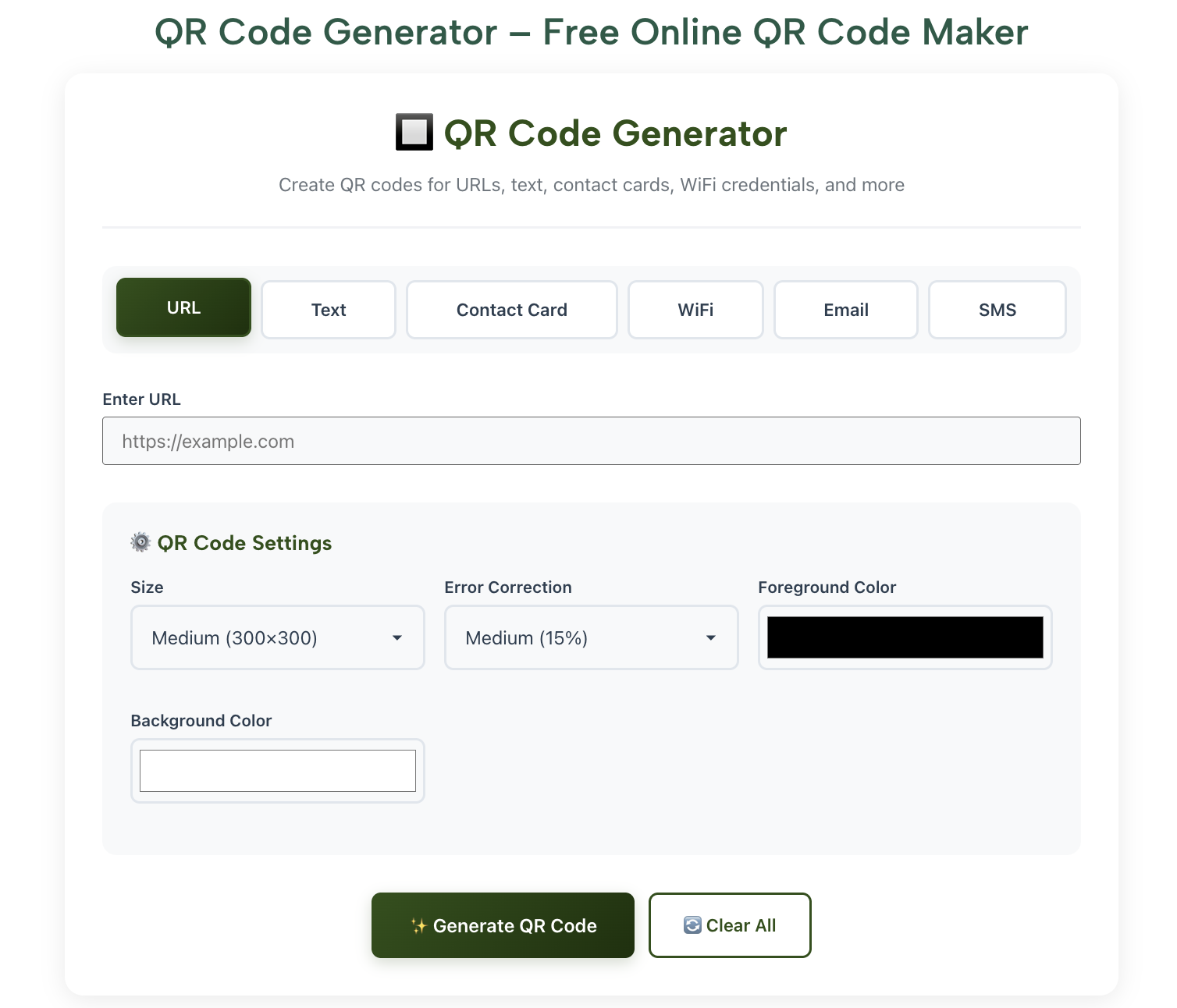
Go to RankStreak's free QR Code Generator. No login, no download, no payment — it's 100% free.
- Open your browser and visit rankstreak.in/qr-code-generator
- You'll see a text input box for your URL or text
- The tool works on mobile, tablet, and desktop
Paste Your WhatsApp Link and Generate
- Paste your complete WhatsApp URL into the input field
- Click "Generate QR Code"
- Your QR code appears instantly on screen
- Click "Download" to save as a PNG image
Test Your QR Code Before Using It
Always test before printing or publishing. A wrong digit in the phone number means customers are messaging the wrong person!
- Open your phone's camera app (works natively on iPhone and most Android phones)
- Point it at the QR code on your screen
- A notification should appear — tap it
- WhatsApp should open with a chat to your number
- If it works correctly, you're good to go!
https://wa.me/ (not http://), and that there are no spaces in the phone number.
🔧 Create Your WhatsApp QR Code Now
Free, instant, no sign-up required. Takes less than 30 seconds.
Open QR Code Generator →Tips to Get the Best Results from Your WhatsApp QR Code
📐 Print Size Matters
For printed materials, make sure the QR code is at least 2.5 cm × 2.5 cm (1 inch × 1 inch). Smaller than this and some phone cameras struggle to read it, especially in low light.
- Business card: 1.5 cm minimum (test before batch printing)
- Flyer / brochure: 3–5 cm recommended
- Shop counter display: 10–15 cm for easy scanning from a distance
- Banner / poster: Scale up proportionally — bigger is better here
🎨 Design Tips for Better Scannability
- High contrast is essential: Dark QR code on white/light background always works best
- Avoid busy backgrounds: Don't place QR code over photos or patterned backgrounds
- Leave white space (quiet zone): Keep at least 4 modules of white border around the QR code
- Don't distort: Always resize proportionally — stretching breaks the code
- Label it: Add text below like "Scan to WhatsApp us" so people know what to do
📱 What Phones Can Scan It?
| Device | How to Scan | Notes |
|---|---|---|
| iPhone (iOS 11+) | Native Camera app | Just point camera, tap notification |
| Android (most) | Native Camera app | Works on Samsung, OnePlus, Xiaomi, etc. |
| WhatsApp itself | WhatsApp → 3 dots → QR code scanner | Built-in scanner in WhatsApp |
| Google Lens | Google Lens → scan | Works on all Android phones |
| Older Android | Download a free QR scanner app | e.g. QR & Barcode Scanner by ZXing |
Common Mistakes That Break WhatsApp QR Codes
- Including the + sign — use
wa.me/91...notwa.me/+91... - Adding spaces or hyphens —
919876543210not91 98765 43210 - Wrong country code — India is 91, not 0091 or +91
- Using http:// instead of https:// — must be
https://wa.me/ - Printing too small — less than 1.5 cm often fails to scan
- Low resolution download — always download PNG, not screenshot
WhatsApp Business vs Regular WhatsApp: Does It Matter?
The QR code method works identically for both. However, if you're using this for business purposes, WhatsApp Business has some advantages worth knowing:
| Feature | WhatsApp Regular | WhatsApp Business |
|---|---|---|
| QR code works | ✅ Yes | ✅ Yes |
| Business profile (hours, address) | ❌ No | ✅ Yes |
| Auto-reply / away message | ❌ No | ✅ Yes |
| Quick replies for FAQs | ❌ No | ✅ Yes |
| Product catalog | ❌ No | ✅ Yes |
| Free to use | ✅ Yes | ✅ Yes |
For shop owners, freelancers, or anyone using WhatsApp professionally, switching to WhatsApp Business (free app) is highly recommended. It has its own built-in QR code too — but the method in this guide gives you more flexibility for print and digital use.
More Free Tools You'll Find Useful
RankStreak offers a full suite of free online tools — here are some that pair well with your WhatsApp QR code strategy:
🔧 Explore More Free Tools on RankStreak
- 📝 Word Counter — Count words and characters in your WhatsApp message drafts before sending
- 🔤 Character Counter — Make sure your Instagram bio or business description hits the right length
- 🔐 Password Generator — Secure your WhatsApp Business account with a strong password
- 🔄 Case Converter — Format your business name or tagline perfectly for print materials
- 🎂 Age Calculator — More handy tools for everyday calculations
Frequently Asked Questions
No. A QR code generated for a wa.me link does not expire. It will work as long as the WhatsApp number is active. However, if you change your number, you'll need to generate a new QR code.
Yes, it's as safe as sharing your phone number publicly. Anyone who scans it can start a WhatsApp chat with you. For business use, this is the desired outcome. Just avoid sharing QR codes for personal numbers in very public places if you don't want unsolicited messages.
Yes! If you have a WhatsApp Group invite link (starts with https://chat.whatsapp.com/...), you can paste that into the QR Code Generator too. Scanning the QR code will take people straight to the group join page.
If they don't have WhatsApp installed, the link will take them to WhatsApp's website where they can download the app. So even non-WhatsApp users are guided to install it, which is actually a great conversion tool for businesses.
RankStreak's QR Code Generator produces a clean, high-contrast QR code ready for print and digital use. For advanced customisation (colors, logo in center), you can use the downloaded image in design tools like Canva after generating the base code here.
Yes. When the QR code is scanned on a desktop browser, it opens WhatsApp Web if the person uses WhatsApp on their desktop. On mobile, it opens the native WhatsApp app.
Conclusion
Creating a WhatsApp QR code is one of the easiest and most impactful things you can do for your business or personal brand. In under 60 seconds, you can make it effortless for anyone to contact you — no typing, no saving contacts, just scan and chat.
Quick recap of what we covered:
- Build your WhatsApp link:
https://wa.me/[countrycode][number] - Optionally add a pre-filled message with
?text=... - Paste it into RankStreak's free QR Code Generator
- Download your QR code as PNG
- Test it, then use it everywhere
🚀 Explore All Free Tools
Word counter, password generator, case converter, age calculator and more — all free, no sign-up.
Browse All Tools →